
Plant App for iPad: Review Plant Photos, Care Notes, and Symptoms on a Larger Screen
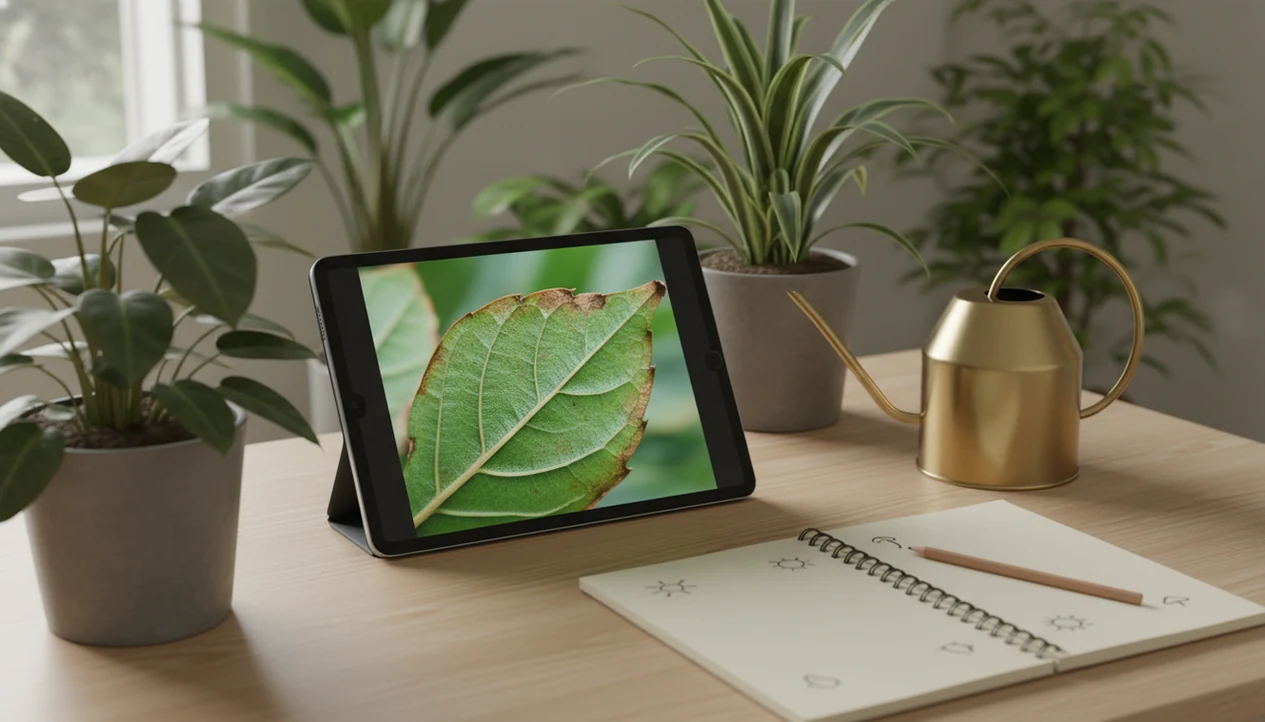
Yes, a plant app for iPad can help you identify plants, review plant photos, check symptoms, and manage care notes on a larger screen. PlantApp is useful when you want to compare leaf details, track multiple houseplants or garden plants, and follow reminders without squinting at a phone.
For an iPad workflow, the key jobs are photo identification, care guidance, watering reminders, and disease troubleshooting in one plant record.
- An iPad plant care app is best for reviewing high-resolution plant photos, notes, reminders, and symptom history in one place.
- Photo-based plant identification and disease checks are useful first steps, but rare plants and severe symptoms should be verified with expert sources.
- The iPad’s larger screen can make side-by-side review, plant inventory management, and care planning easier than on a phone.
What a plant app for iPad helps plant owners do
A plant app for iPad helps you snap or import plant photos, identify a likely species, check symptoms, save care notes, and review reminders from one larger screen. The workflow fits houseplants, balcony containers, and garden plants that need more than a one-time name.
On iPad, the photo review is the point. You can zoom into leaf veins, compare brown edges, and read care steps without pinching a phone screen every few seconds. That helps when a plant tag has faded in the sun or disappeared with the nursery sleeve.
For houseplant owners who manage more than a few pots, the saved-profile workflow helps because saved plant profiles keep photos, watering notes, and symptom changes together. A packed shelf makes memory unreliable.
How a plant app for iPad works
A plant app for iPad works by taking a new photo or importing one from the iPad camera roll, then comparing visible plant clues with a large reference system. The result is usually a likely ID, confidence wording, care information, and a place to save what you observed.
After you allow photo access, the app can send the image for cloud processing, where image recognition looks for patterns such as leaf shape, color, edges, flowers, stems, or disease marks. Strong apps avoid sounding absolute; they show a probable match and may suggest similar plants to compare. Once you choose a result, it can become a saved plant profile with photos, notes, room or garden location, symptom history, and care changes over time.
Reminders then use more than the plant name. A good schedule considers plant type, light level, season, indoor or outdoor placement, and sometimes local conditions. Some notes and reminders may still be available offline, but identification and disease checks often need internet access. Privacy also matters: photo permission should be limited to the images you choose when possible.
How photo identification works in a plant app for iPad
Photo identification in a plant app for iPad works by comparing your image with learned plant and disease image patterns, then returning likely matches and care guidance. The system may use image embeddings, which are numerical summaries of photo clues like leaf shape, color, texture, and growth habit.
Most results include a plant name, a confidence level, common care needs, possible problems, and next steps. Many apps use cloud processing, so internet access may be needed for identification or disease checks. In one controlled PlantVillage benchmark, a deep-learning model identified 26 crop diseases across 14 crops with 99.35% test accuracy under controlled image conditions (https://www.frontiersin.org/articles/10.3389/fpls.2016.01419/full); that does not mean a consumer app will perform that well on dim, overlapping, real-world houseplant photos.
One photo rarely tells the whole story. A mushy cactus base after watering may point toward rot, but the potting mix smell and recent care history matter too.
iPad plant care app features that matter most
The most useful iPad plant care app features connect identification with care history, not just a pretty plant name. A plant identifier iPad workflow should help you compare the leaf shape, stem, and growth habit, then keep that result tied to future notes.
- AI plant identification should show a likely match and confidence language, not pretend certainty.
- Disease diagnosis should flag possible pests, leaf spots, rot, or stress patterns as a care step, not a cure.
- Watering reminders should adjust for light, season, pot size, and indoor or outdoor placement.
- Care notes and plant history should track symptoms over time, especially yellowing, brown tips, and repotting dates.
- Photo albums should store clear reference images, not only the first blurry leaf photo taken under yellow kitchen light at 10 p.m.
Anyone dealing with recurring leaf problems benefits when symptom records and photo-based troubleshooting make changes easier to compare across weeks. Good AI plant identifier, disease diagnosis, and personalized plant care app for houseplants and garden plants deliver a cautious starting point, not a guaranteed diagnosis from one photo.
Minimum iPad requirements for a plant identifier workflow
A plant identifier workflow on iPad needs photo access first: either a working camera or permission to import images from your photo library. Before installing, check the App Store listing for iPadOS compatibility, storage requirements, subscription terms, and whether the plant scanner features need internet access.
Cloud-based identification and diagnosis usually perform the image comparison online. That means weak Wi-Fi in a greenhouse, basement, or back patio can slow results. Storage also matters if you keep plant albums, symptom records, and seasonal care history for a larger collection.
Pew Research Center reports that smartphone ownership is higher than tablet ownership among U.S. adults, which helps explain why tablet plant apps serve a smaller but often more planning-focused audience (https://www.pewresearch.org/internet/fact-sheet/mobile/). For collectors who review plant shelves at night, the iPad can work as the bigger-screen planning station because plant profiles, care notes, and reminders are easier to scan in one sitting.
How to use a plant app for iPad in 5 steps
Use a plant app for iPad by taking clear photos, checking the suggested ID, saving the plant profile, adding symptoms, and reviewing reminders regularly. The process works better when the first photo includes more than one glossy leaf.
- Take a second photo in natural light, including the leaf, stem, pot, and soil surface.
- Compare the suggested ID against visible traits, especially leaf arrangement, flower shape, bark, or growth habit.
- Save the plant profile with location notes, such as bathroom shelf, balcony rail, or south window.
- Add symptoms with dates, including brown margins, sticky residue, yellow leaves, or soggy mix smell.
- Review reminders weekly and adjust watering or light notes when the season, pot size, or room changes.
If your priority is careful follow-up, keep identification, care notes, and watering reminders connected to the saved plant profile. For rare plants or serious decline, check difficult results against expert resources or local extension information.
iPad plant app vs iPhone plant app for photo review
An iPad is usually better for reviewing plant photos, reading care guides, and managing plant inventories, while an iPhone is usually better for quick outdoor capture. Larger screens can reduce pinching, panning, and context switching in detailed review tasks; Nielsen Norman Group identifies small screen size as a core mobile-usability constraint (https://www.nngroup.com/articles/mobile-ux/).
| Task | iPad plant app | iPhone plant app |
|---|---|---|
| Quick photo capture | Less convenient outdoors | Easier to carry in a pocket |
| Side-by-side review | Better for comparing old and new symptoms | Possible, but cramped |
| Care guide reading | Easier for longer instructions | Good for short checks |
| Plant inventory | Better for shelves, rooms, and garden beds | Fine for small collections |
| Camera quality | Depends on iPad model | Often stronger on newer phones |
Terracotta pot beside open app, leaf photo on one side, care notes on the other. That is where the tablet earns its space.
The right fit for quick field photos is often a phone, and the plant identifier app for iPhone guide covers that workflow because portability matters when you are outside.
Where PlantApp fits an iPad plant care routine
Does PlantApp make sense as part of an iPad plant routine? Yes, if you want the iPad to act as a review station for saved photos, care notes, watering guidance, and symptom changes instead of only a camera screen.
PlantApp supports photo-based plant identification, care, watering, and disease troubleshooting for everyday plant owners, houseplant collectors, and home gardeners. It does not make edible-foraging claims or professional agronomy decisions. Use the app result as a starting point, then compare the leaf shape, stem, and growth habit when the ID is uncertain.
Plant shelf packed three tiers high. Names blur fast.
Houseplant collectors who photograph many similar pots can use PlantApp because the saved profile workflow keeps each likely match, symptom note, and care step tied to the right plant. For leaf spots, pests, or rot questions, the plant disease scanner guide explains how symptom photos should be framed.
Limitations
Plant apps are useful first-step assistants, but they are not 100% accurate identification systems or guaranteed disease labs. Use caution when the decision affects safety, expensive plants, or outdoor removal.
- Plant identification and disease diagnosis can be wrong, especially with lookalike species.
- Blurry, dark, partial, or non-representative photos can cause poor results.
- Rare species, hybrids, juvenile plants, and cultivar forms may be harder to identify.
- Mixed infections, nutrient issues, cold damage, and overwatering can produce similar symptoms.
- Internet access may be required for cloud-based image recognition or disease analysis.
- Free tiers may restrict advanced diagnoses, care plans, reminders, or disease libraries.
- Severe symptoms, valuable collections, or legal weed-removal decisions should be checked with expert resources.
- Competing tools such as PictureThis, PlantNet, Planta, and Blossom may differ in pricing, databases, and interface style.
For cautious users comparing options, the best plant identifier app guide is often more useful than choosing from screenshots because accuracy, care depth, and limits all matter.
FAQ
Can an iPad identify plants?
Yes, an iPad can identify plants through a compatible plant identifier app that uses photos or imported images. Results should be treated as likely matches, not guaranteed species confirmation.
What is an iPad plant app?
An iPad plant app is software for plant identification, care notes, reminders, symptom review, and plant photo history. Apps in this category use the iPad screen to make review and planning easier.
Are plant apps accurate?
Plant app accuracy varies by photo quality, species, lighting, plant age, and database coverage. Even strong apps can misidentify rare plants or confusing symptoms.
Can plant apps diagnose disease?
Many plant apps can suggest possible diseases, pests, or stress causes from photos. They should not replace expert diagnosis for severe, valuable, or spreading plant problems.
Do plant apps need internet?
Many plant apps need internet for cloud-based image recognition and diagnosis. Some saved notes, reminders, or care records may still work offline depending on the app.
Is an iPad better than an iPhone for plant identification?
An iPad is better for reviewing photos, reading care guides, and comparing symptom history. An iPhone is usually better for quick outdoor photos and field use.
Can I track watering on iPad?
Yes, many iPad plant care apps support watering reminders, care logs, and plant-specific notes. Adjust reminders when light, season, pot size, or room conditions change.