Plant ID Photo Tips to Improve AI Identification Accuracy
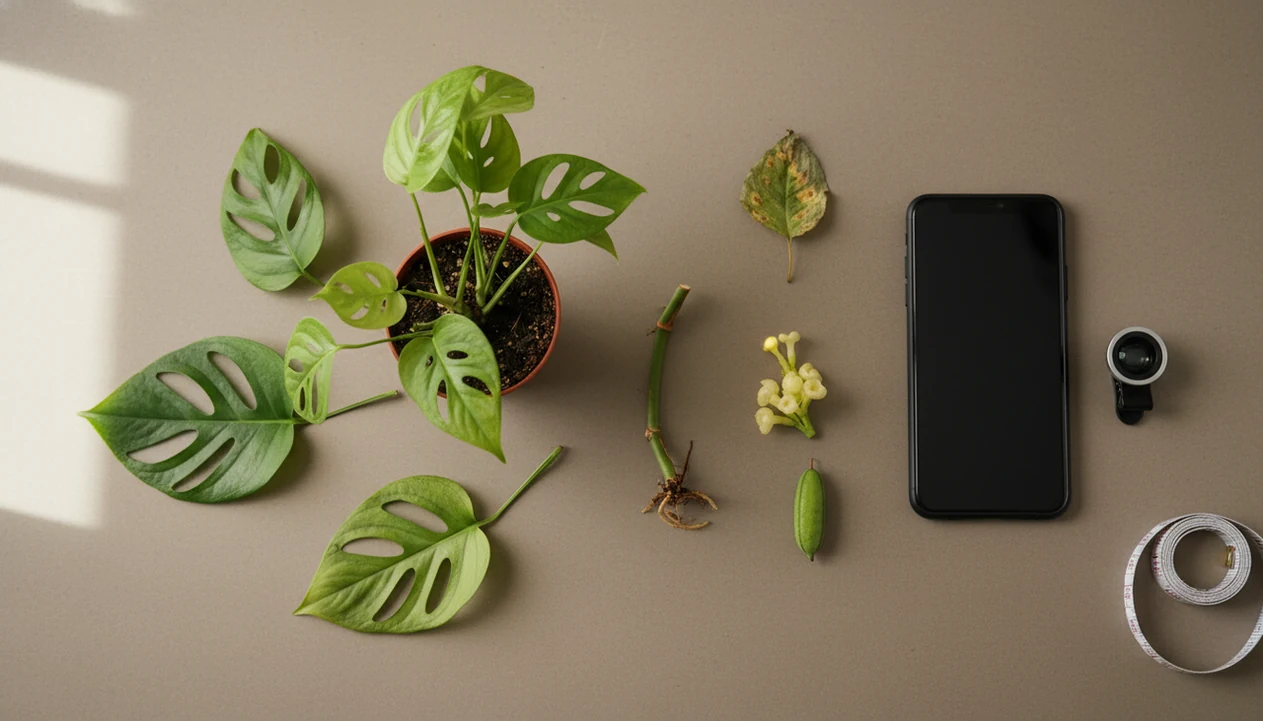
The best plant id photo tips are to take several sharp photos: the whole plant, leaf tops and backs, stem nodes, flowers or fruit, damage, and the plant’s growing context. AI plant apps compare visible evidence, so better framing, lighting, focus, and verification lead to more reliable identification and care guidance.
> Definition: Plant ID photo tips are practical photo-taking rules that help plant identifier apps compare leaves, stems, flowers, fruit, symptoms, and context against known plant records more accurately.
TL;DR
- Take multiple photos, not one snapshot: whole plant, close-up leaves, leaf undersides, stem nodes, flowers or fruit, and habitat context.
- For diagnosis, photograph both damaged and healthy tissue plus the whole plant, soil surface, pot, and nearby plants.
- Verify important app results with scientific names, local distribution, USDA PLANTS, regional floras, or extension resources before acting.
Plant Photo Checklist Before You Open a PlantApp
A useful plant photo checklist starts before the app opens. Capture the evidence a botanist would compare, not just the prettiest leaf.
- Whole plant: Show shape, size, branching, and growth habit. A trailing pothos, upright shrub, and basal rosette can share leaf clues but grow very differently.
- Leaf top and underside: Photograph a mature leaf from above, then flip one gently to show veins, hairs, color, and pests.
- Stem details: Include nodes, petioles, bark, thorns, tendrils, sap, or unusual hairs. These details often separate look-alikes.
- Flowers or fruit: Add flowers, seed pods, berries, cones, or spent blooms if present. For blooms, a dedicated identify flower from photo workflow helps.
- Growing context: Show the pot, bed, soil, nearby plants, or habitat.
One pretty leaf is usually not enough.
AI Matching Signals in Plant Identification Photos
AI plant identification works by comparing visual signals in your photo, such as leaf shape, venation, flower structure, stem traits, and growth habit, against patterns learned from labeled plant images.
Plant-identification benchmarks such as LifeCLEF/PlantCLEF evaluate image-recognition systems across plant organs, observation conditions, and labeled species records, which is why varied photos usually outperform a single cropped leaf source.
The technical layer often uses image embeddings, which means the app turns visible plant features into a mathematical pattern it can compare. In plain terms, clearer evidence gives the system more to match. Training data, camera quality, season, and the angle of the photo all affect confidence.
A mystery cutting on a kitchen counter may match three houseplants if only one leaf is visible. Add the stem node, petiole, and overall growth direction, and the likely match becomes less vague. Multiple views reduce look-alike errors because the app is no longer betting on one trait. If you only need leaf-level clues, the same principle applies when you identify plant by leaf.
5-Step Plant App Photo Guide for Better Results
Use this plant app photo guide as a repeatable field routine. The goal is to give the app clean, varied, and verifiable evidence.
1. Set up clean light and background
- Move the plant into bright indirect light or open shade. Avoid yellow kitchen light at 10 p.m.; it makes green leaves look olive or gray.
- Place a plain surface behind small plants. Keep one later context photo so the growing site is not lost.
2. Photograph the whole plant
- Frame the whole plant first. Include height, spread, branching, pot size, or bed position.
3. Capture leaves, stems, and flowers
- Take close-ups of mature leaves, undersides, stem nodes, flowers, fruit, bark, or cones. For woody plants, identify tree by leaf works better when bark and buds are also visible.
4. Add diagnosis and context images
- Add damage photos when relevant. Show both rusty speckles on rose foliage and clean leaves nearby.
5. Review, verify, and retake
- Check the app result and retake weak images. Blur, glare, or missing flowers can change the suggestion.
Plant ID Photo Tips for Leaves, Stems, Flowers, and Fruit
Different plant parts answer different ID questions. For difficult matches, photograph four named evidence groups instead of relying on one angle.
- Leaves: Capture the leaf top, underside, margin, veins, arrangement, and mature shape. Young leaves can be misleading, especially on vines and seedlings.
- Stems: Show nodes, branching pattern, bark texture, hairs, thorns, sap, tendrils, or petiole shape. A close stem photo often explains what the leaf photo cannot.
- Flowers: Photograph flowers from the front and side, including clusters. A side view can show tube length, bracts, and how blooms attach.
- Fruit and seeds: Add berries, pods, cones, seed heads, or spent blooms when flowers are absent.
For scale, place a ruler or coin beside the plant without covering the feature. The terracotta pot beside the open app is fine; the thumb over the node is not.
Plant Photo Checklist for Disease Diagnosis Photos
How should you photograph plant disease for an app? Take symptom close-ups, healthy comparison photos, and whole-plant context so the app can separate pests, pathogens, and care stress.
Start with the visible symptom: spots, yellowing, holes, webbing, mildew, wilting, sticky residue, or distorted new growth. Then photograph a healthy leaf on the same plant. That side-by-side comparison matters because normal variegation, old leaf aging, and nutrient stress can look like disease in a tight crop.
Next, show the pattern across the whole plant. Is damage on lower leaves, new growth, one side, or every stem? Include the soil surface, drainage holes, mulch, irrigation area, and nearby plants. Soft roots rinsed in the sink tell a different story than dry leaf edges in a hot window.
Photo-based diagnosis gives a care step, not a cure. A plant disease diagnosis app result should be checked before spraying or pruning heavily.
Plant App Photo Guide for Lighting, Focus, and Background
Better lighting often improves plant ID more than a newer phone. Use bright natural light without harsh glare, deep shadows, or color casts.
Tap the screen to focus on the plant part you want identified. If the background is sharper than the leaf veins, retake the shot. Avoid motion blur, digital zoom, heavy filters, and portrait blur, because they remove edges and textures that apps compare. Sheer curtain softening noon sun is usually better than a flash bouncing off glossy leaves.
Plain backgrounds help for close-ups. A sheet of paper behind a leaf can isolate the margin and venation, but don’t erase all context. Move leaves gently if they block a flower or stem node. Leave enough surrounding detail to show whether the plant is in a pot, lawn, woodland edge, or vegetable bed.
Small fix. Big difference.
Common Plant Photo Mistakes and Quick Fixes
Most plant photo mistakes come from hiding the exact edges and context the app needs to compare. Blur, glare, and portrait mode can soften leaf margins, vein texture, hairs, flower parts, and stem nodes.
Close-ups are useful, but a tight crop of one glossy leaf can lose the growth habit, pot size, branching pattern, or habitat that separates look-alikes. Avoid photographing only fresh new leaves, one damaged leaf, or a nursery tag. New growth may not show mature shape, damaged tissue can distort the plant’s normal features, and tags can be wrong, reused, or too vague.
- Retake blurry photos with both elbows steady, the phone closer instead of zoomed, and the focus tapped on the plant.
- Move the plant or your body to remove hard shadows, window glare, and flash reflections on waxy leaves.
- Clear background clutter just enough to reveal the leaf edge, stem, flower, or fruit without losing the setting.
- Add one whole-plant image when your close-up hides how the plant grows.
- Photograph missing flowers, fruit, seed heads, or bark if they are present nearby.
- Wait for a second seasonal photo when the plant is leafless, not flowering, newly sprouted, or too damaged to judge.
Verification Steps After a PlantApp Result
A plant app result should be treated as a likely match, not final proof. Verify high-stakes IDs before changing care, eating a plant, treating disease, or handling toxic or invasive species.
Michigan State University Extension reported in a 2025 evaluation that the top-performing tested app correctly identified plants about 76% of the time, while other tools ranged much lower; that is useful, but not certain source. MSU Extension also recommends checking app results against authoritative botanical resources, including USDA PLANTS, regional floras, and extension fact sheets.
| Verification step | What to compare | Why it matters |
|---|---|---|
| Scientific name | Genus, species, and cultivar if shown | Common names can point to different plants |
| Regional presence | USDA PLANTS, local floras, extension pages | A species unlikely in your area needs caution |
| Plant parts | Leaves, stems, flowers, fruit, habit | One matching trait is weak evidence |
| Risk level | Edible, toxic, invasive, treatment decision | Mistakes can affect people, pets, or gardens |
Use PlantApp for triage—likely names, care notes, and retake prompts—then verify risky IDs with local sources before pruning, spraying, eating, or handling the plant.
Limitations
Sharper photos improve the odds, but they do not remove uncertainty. Use the app result as a starting point when the ID is uncertain.
- AI plant apps are not 100% accurate, even with clear, well-framed images.
- Rare plants, hybrids, cultivars, seedlings, dormant plants, and heavily pruned plants can be hard to identify from photos alone.
- Disease diagnosis from pictures is uncertain because pests, fungi, bacteria, water stress, nutrient issues, and herbicide drift can overlap.
- Poor light, glare, motion blur, digital zoom, filters, and clutter can make a photo unusable.
- Do not rely on app results alone to decide whether a plant is edible, toxic, invasive, or safe to compost.
- Seasonal timing can remove key features. Winter twigs, leafless vines, and spent stems may not show enough evidence.
- Plant tags faded by sun or tossed with the nursery sleeve should not be replaced by a single app guess.
Tools like PlantApp can help organize likely matches, care notes, and retakes, but local verification still matters.
FAQ
How many plant photos should I take for an accurate ID?
Take at least four photos: the whole plant, a mature leaf top, the leaf underside, and a stem or flower/fruit detail. More photos are helpful when the plant is damaged, woody, young, or out of bloom.
What plant parts should I photograph for identification?
Photograph the whole plant, mature leaves, leaf undersides, stems, nodes, flowers, fruit, seed pods, bark, or damage depending on the goal. PlantApp and similar tools work better when several plant parts are visible.
Are leaf undersides important in plant identification photos?
Yes. Leaf undersides can show vein patterns, hairs, spores, pests, color shifts, and attachment details that are not visible from above.
What background works best for plant identification photos?
Use a simple, uncluttered background for close-ups so the app focuses on the plant. Also include one context photo showing the pot, garden bed, soil, or habitat.
Can one photo identify a plant accurately?
One clear photo may identify a distinctive plant in flower. It often fails for look-alikes, seedlings, damaged plants, and disease questions.
Why is my plant identifier app wrong?
Common causes include blur, poor lighting, missing flowers or stems, cluttered backgrounds, look-alike species, unusual cultivars, and limited training data. Retake the plant from multiple angles before trusting the result.
How do I photograph plant disease for an app diagnosis?
Photograph close-ups of symptoms, healthy comparison leaves, the whole plant, the soil surface, drainage area, and nearby plants. PlantApp can suggest likely causes, but severe or spreading problems should be verified locally.
Should I trust plant app results before treating or eating a plant?
No. App results are useful starting points, but edible, toxic, invasive, or treatment-related IDs should be verified with authoritative plant databases, regional floras, or extension resources.