> Definition: PlantApp is a plant identifier app for Android that identifies plants from photos and gives care, watering, and disease troubleshooting steps for plant owners.
TL;DR - Snap a photo on any Android device to identify houseplants, garden plants, and trees in seconds. - Get personalized care plans with watering, light, and fertilizer reminders for every identified plant. - Scan leaves for spots, discoloration, or pests to receive AI-powered disease diagnosis and treatment steps.
Android Features in PlantApp
PlantApp on Android combines photo identification, care planning, reminder tracking, and visible symptom checks in one plant workflow. It is built for the moment when a sun-faded nursery tag is gone and the plant on your windowsill needs a name.
- Photo ID: Take a new camera photo or upload from the gallery to get a likely match for houseplants, trees, weeds, and garden plants.
- Leaf symptom scan: PlantApp checks visible spots, discoloration, pest marks, and damaged tissue as a care step, not a cure.
- Personalized care plans: Each saved plant can receive watering, light, fertilizer, and seasonal care guidance.
- Collection tracking: Care reminders help you separate the fern that dries fast from the snake plant that waits two weeks.
- Cloud limits: AI recognition needs internet access; saved plant notes may remain useful, but fresh scans need cloud processing.
The right fit is an Android user managing several unlabeled plants who needs the scan to lead into reminders, care notes, and symptom history—not just a name.
Minimum Android Requirements for PlantApp
PlantApp supports modern Android phones and works best on devices running Android 8.0 or later. A rear camera of 8 megapixels or higher is recommended, especially for leaf veins, flower parts, bark texture, and small pest damage.
You’ll need an internet connection for AI processing. Photos are uploaded so the model can compare image features and return a confidence score. The install requires normal storage space for app data, plus camera and photo-library permissions if you want to scan from both sources.
That permission prompt matters.
Smartphone ownership is high in many markets, which makes an Android plant identifier broadly accessible for home growers; Pew Research Center reports widespread smartphone adoption across advanced economies and growing adoption in emerging markets (https://www.pewresearch.org/internet/fact-sheet/mobile/). If you also use Apple devices, our plant identifier app for iPhone guide covers the iOS workflow separately.
AI Plant Identification Workflow on Android
AI plant identification on Android works by turning a plant photo into visual signals, comparing those signals with labeled plant images, and returning likely matches with confidence scores. The technical process uses computer vision and image embeddings, which means the model looks for patterns such as leaf shape, flower structure, venation, stem texture, and growth habit.
The workflow is usually simple: upload the photo, extract visual features, classify the plant, then show a ranked result. Disease diagnosis uses similar pattern recognition on visible symptoms, such as yellow halos, rusty speckles, powdery patches, or pest trails.
Lab accuracy can exceed 90% on curated plant-disease datasets, including published PlantVillage-style image benchmarks, but real-world performance is lower because phone photos are messy (see Mohanty et al., 2016: https://doi.org/10.3389/fpls.2016.01419). A blurry leaf photo under yellow kitchen light at 10 p.m. gives the model less to work with than a sharp outdoor image.
PlantApp works best when you use the app result as a starting point, then compare the leaf shape, stem, and growth habit before changing care.
6 Steps to Use PlantApp on Android
The fastest way to use PlantApp on Android is to take a clear photo, review the confidence score, then save the plant before setting care reminders. The most reliable workflow uses more than one photo when the ID is uncertain.
- Check back for the official PlantApp Android launch or start from the download plant identifier app page, then create an account.
- Open the camera and frame the plant in natural light, with the leaf, stem, flower, or bark in focus.
- Review the likely species match, alternate matches, and confidence score before accepting the result.
- Save the plant to your collection and set watering, light, and fertilizer reminders.
- Scan an affected leaf if you see spots, discoloration, curling, sticky residue, or pest damage.
- Follow the recommended treatment or care adjustment, then watch the next new leaf for improvement.
Android users trying to stop guessing at plant care get the most value from PlantApp because each scan can become a named plant profile with reminders and symptom history.
PlantApp vs PlantNet and Google Lens on Android
PlantApp, PlantNet, and Google Lens can all help identify plants on Android, but they solve different problems. A good Android plant identifier gives a likely species match, care context, and risk checks, not just a visually similar image result.
| Android option | Strongest use | Main limitation | Best fit |
|---|---|---|---|
| PlantApp | Photo ID plus care plans and disease guidance | Still depends on photo quality and visible features | Houseplant owners who want next steps after the name |
| PlantNet | Free, open-source plant identification | Stronger on wild plants than personalized care plans | Wildflower and biodiversity checks |
| Google Lens | Broad visual search from Android photos | Plant-specific guidance can be shallow | Quick comparison when you need a second opinion |
Different apps perform better on different categories, including houseplants, wildflowers, trees, and crops. Cross-checking tricky IDs across multiple apps improves reliability. For broader selection criteria, the best plant identifier app guide explains how to compare accuracy, care tools, and safety warnings.
Evidence Behind Android Plant Identification Accuracy
Android plant identification accuracy is strongest when the photo resembles the images used to train and test the model. Curated benchmarks can show that AI recognizes visual plant patterns, but they cannot guarantee the same result on a rushed balcony photo.
Benchmarks are useful because they compare models on labeled images with known answers. They are limited because real users submit curled leaves, mixed backgrounds, low light, juvenile plants, and partial shots. Field conditions also add regional lookalikes, seasonal changes, pests, and camera compression that clean lab datasets do not fully capture.
Use evidence as a confidence guide, not a safety certificate:
- Compare the first match with alternatives in PlantApp, PlantNet, Google Lens, or PictureThis when the plant matters.
- Check more than one feature, including leaf arrangement, stem, flower, fruit, bark, or growth habit.
- Retake the photo in daylight if the result feels generic or the confidence is low.
- Confirm edible, toxic, medicinal, or pet-safety decisions with an extension service, field guide, botanist, or qualified local expert.
This is why an app can be helpful for everyday care and still need human confirmation for high-risk plant decisions.
5 Photo Tips for Accurate Android Plant Identification
Accurate Android plant identification depends more on the photo than most users expect. One pretty leaf is often not enough, especially when two species share similar foliage.
Use these habits before you scan:
- Use natural daylight and avoid harsh shadows across the leaf.
- Frame the distinguishing feature, such as flower, leaf underside, bark, fruit, or growth habit.
- Take multiple angles for tricky species, including a full-plant shot.
- For disease scans, photograph the affected leaf up close with visible symptoms.
- Keep fingers, pots, labels, and background clutter from covering the plant.
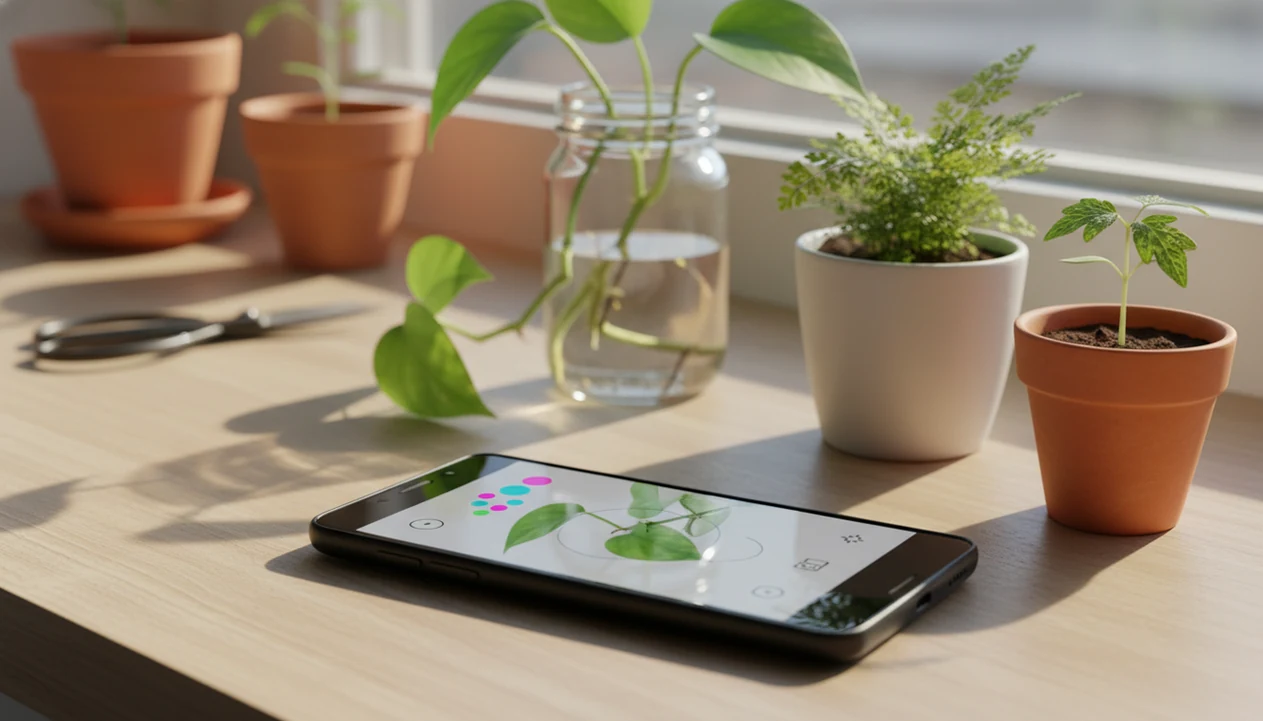
PlantApp works better when the photo includes context. A terracotta pot beside an open app looks tidy, but the model needs the plant’s structure more than the pot.
Small details count.
Privacy and Data Safety in Android Plant ID Apps
Android plant ID apps usually send photos to cloud servers for AI processing, so privacy settings deserve attention before you upload. Plant photos may also contain location metadata if your camera stores GPS information in image files.
PlantApp uses uploaded images to process identification and care requests. It does not need your precise location for every scan, but regional context can help with outdoor plants and weeds. Android permission controls let you allow or deny camera, photo library, and location access.
Photos uploaded to AI systems may be used to improve future model performance, depending on app policy and user settings. Before scanning a balcony pot behind a pet gate or a rare garden plant, check permission choices and remove location data if the exact place matters.
Google Play Download for PlantApp on Android
Check back for the official PlantApp Android launch or begin from the official PlantApp download page. After install, new users can start with a first scan, review a likely match, and create a saved plant profile.
The free tier is meant for basic identification and trial use. Premium features may include expanded scan limits, deeper care plans, disease checks, and reminder tools. Android plant owners who want one place to identify, save, and troubleshoot plants will usually prefer a scan workflow that leads directly into care actions instead of ending at a name.
Limitations
PlantApp is useful for fast plant triage, but it should not be treated as a final botanical authority. AI results are only as strong as the photo clues and the risk level of the decision.
- Even top AI models can misidentify plants in real-world phone photos.
- Disease diagnosis works best on clearly visible leaf symptoms; root rot, soil issues, and early infections often go undetected.
- No app should be the sole authority for edible plant, medicinal plant, or toxic plant decisions.
- AI performance drops with blurry, dark, cropped, or poorly framed photos.
- Care reminders still require user judgment; water pooled in a cachepot means the schedule needs adjusting.
- Lab-reported accuracy does not always reflect everyday Android camera conditions.
- Similar-looking seedlings, volunteer tomatoes, and young weeds can fool visual models.
- Competitors such as picturethisai.com, planta.app, and gardenanswers.com face the same real-world photo limits.
For disease-specific workflows, the plant disease scanner guide explains when a symptom scan helps and when to seek local expert advice.